In today’s fast-paced digital world, mastering video editing has become more essential than ever for content creators and media producers alike. With new tools and trends constantly emerging, staying ahead can feel overwhelming.
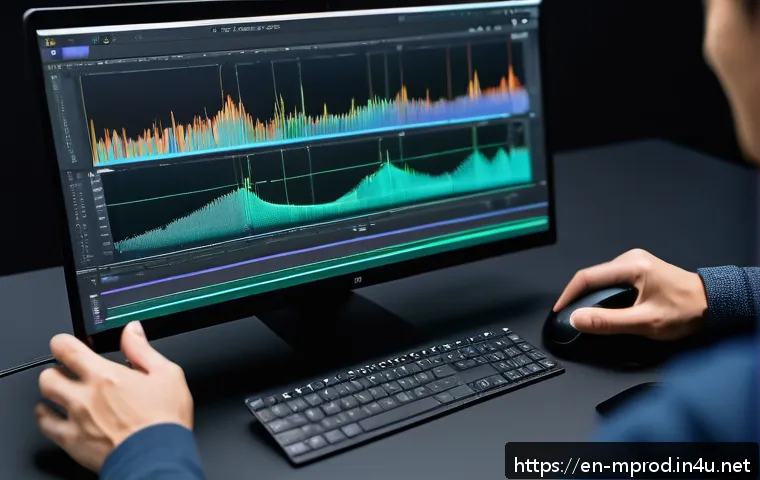
But imagine unlocking the insider techniques that professionals rely on daily to craft stunning visuals effortlessly. Whether you’re a beginner or looking to sharpen your skills, these pro-level secrets will transform your editing game.
Let’s dive into the strategies that make videos not just watchable, but truly unforgettable. Ready to elevate your content and captivate your audience?
Optimizing Your Workflow for Maximum Efficiency
Streamlining Your Editing Timeline
One of the biggest game changers in video editing is how you organize your timeline. When I first started, my projects were a chaotic mess—clips scattered everywhere, layers overlapping without rhyme or reason.
Over time, I learned that color-coding clips by type—such as interviews, B-roll, and graphics—makes navigation so much smoother. Labeling sequences and grouping related clips into bins or folders also reduces the time spent hunting for assets.
Trust me, the less time you spend searching, the more you can focus on creativity. Try to keep your timeline clean by trimming clips down as you go, rather than waiting until the end.
It keeps things lightweight and responsive, especially on less powerful machines.
Mastering Keyboard Shortcuts for Speed
Nothing accelerates your editing like mastering keyboard shortcuts. I remember the first time I committed to learning them—it felt overwhelming, but the payoff was huge.
Simple commands like ripple delete, adding markers, or toggling between tools can slice your editing time in half. Most editing software allows you to customize shortcuts, so tailor them to fit your natural workflow.
I suggest picking a few essential shortcuts at a time and practicing them until they become second nature. The speed you gain translates directly into more creative experimentation and less frustration.
Using Proxy Files Without Compromising Quality
Working with 4K or higher resolution footage can slow your system to a crawl if you’re not careful. Proxy files—lower-resolution versions of your clips—are a lifesaver in this scenario.
When I switched to proxy editing, it felt like I got a brand-new computer overnight. You can edit smoothly and make precise cuts, then switch back to the full-resolution files for export.
Just make sure you manage the proxy workflow correctly so you don’t accidentally export low-res videos. Most modern editors like Premiere Pro and DaVinci Resolve have built-in proxy workflows that are pretty straightforward once you get the hang of them.
Enhancing Visual Storytelling Through Color and Composition
Color Grading Tips That Go Beyond Filters
Color grading isn’t just about slapping on a preset filter; it’s about enhancing mood and narrative. Early on, I used to rely heavily on LUTs (Look-Up Tables), but I realized they often made my footage look artificial.
Instead, I now tweak individual color channels, adjust contrast, and play with shadows and highlights to create a unique look that complements the story.
For example, cooler tones can emphasize isolation, while warmer hues evoke comfort and nostalgia. Using scopes like waveform and vectorscope helps ensure your colors are balanced and consistent across shots, which is crucial for professional polish.
Rule of Thirds and Beyond: Composing for Impact
Composition is the silent storyteller in every frame. When I began, I stuck rigidly to the rule of thirds, but I soon discovered that breaking rules intentionally—like centering a subject for emphasis or using negative space creatively—can produce much stronger emotional reactions.
Pay attention to leading lines that guide the viewer’s eye, and use depth of field to isolate your subject. Even subtle shifts in framing can make a scene feel more dynamic or intimate.
Experimenting with different angles and shot scales during editing allows you to craft a more compelling visual journey.
Balancing Visual Effects Without Overdoing It
Visual effects can add wow factor but can easily overshadow the story if overused. I’ve seen many beginners go overboard with flashy transitions and animations that distract rather than enhance.
Instead, I recommend using effects sparingly and purposefully—like a subtle lens flare to suggest sunlight or a slight vignette to focus attention. When adding motion graphics or text, make sure they complement your footage’s style and tone.
Consistency is key; too many different effects can confuse your audience and dilute your message.
Sound Design Secrets That Elevate Your Videos
Layering Ambient Sounds for Authenticity
Good sound design is often what makes a video feel immersive, and ambient sounds are the foundation. I used to overlook this and ended up with videos that looked great but felt hollow.
Recording or sourcing ambient audio—like city noise, nature sounds, or room tone—adds depth and realism. Layering these subtly beneath dialogue or music can make scenes come alive.
For example, the gentle hum of a café or distant chatter can transport viewers right into the environment.
Dialogue Editing and Noise Reduction Techniques
Clear, crisp dialogue is non-negotiable for professional quality. When I edit interviews or vlogs, I spend a good chunk of time cleaning up audio. Using noise reduction plugins helps eliminate background hiss, hum, or wind noise, but be cautious not to over-process, which can make voices sound unnatural.
Equalizing dialogue tracks to boost clarity and removing breaths or mouth clicks also enhances the listening experience. Sometimes, simple volume automation to balance speech levels throughout a clip makes a huge difference.
Choosing the Right Music to Match Your Video’s Tone
Music sets the emotional tone and pace, so picking the right track is crucial. I’ve learned that syncing music tempo with the video’s editing rhythm creates a seamless flow.
When I’m working on energetic content, upbeat tracks with strong beats help maintain momentum. For emotional or dramatic scenes, slower, minimalistic music works better.
Don’t forget to check licensing terms; royalty-free libraries like Artlist or Epidemic Sound offer great options for quality tracks without legal headaches.
Leveraging Advanced Editing Techniques for Professional Finish
Using Masking and Keyframing to Create Dynamic Effects
Masking and keyframing are powerful tools to add polish and creativity. Early in my editing journey, these features felt intimidating, but once mastered, they opened up endless possibilities.
Masking allows you to isolate parts of your video for effects like color changes or blur, while keyframing lets you animate those effects over time. For example, you can create smooth transitions by gradually revealing text or simulate camera movements.
The key is patience—start with simple animations and build your skills gradually.
Multi-Camera Editing for Seamless Storytelling
Multi-camera editing is a lifesaver when working on interviews, events, or dynamic scenes. Switching between angles in real-time can be chaotic if you don’t plan ahead.
Using software that supports multi-cam sync based on audio waveforms or timecode drastically simplifies the process. I usually sync my clips first, then cut between shots to maintain visual interest and highlight reactions.
It’s like directing a live show but with the freedom to perfect every cut in post-production.
Creative Use of Speed Ramping and Time Remapping
Speed ramping and time remapping add dramatic flair by manipulating the pace of your footage. When I first experimented with these, it was mostly for action scenes—slowing down a jump or speeding up a chase.
But I found they’re equally effective in emotional moments, like slowing down a heartfelt expression or speeding up mundane tasks to keep viewers engaged.
The key is subtlety; abrupt changes can feel jarring unless that’s the intended effect. Smooth curves in your speed graph help maintain flow.
Choosing the Right Software and Hardware Setup
Comparing Popular Video Editing Software
Picking the right editing software depends on your goals and budget. Adobe Premiere Pro is the industry standard with robust features and excellent integration with other Adobe apps, but it requires a subscription.
Final Cut Pro offers a streamlined experience for Mac users with great performance optimizations. DaVinci Resolve stands out for its powerful color grading tools and a generous free version.
Personally, I started with Resolve and moved to Premiere as my projects became more complex. Each has its pros and cons, so consider your workflow and system compatibility.
Hardware Essentials That Boost Editing Performance
Editing high-resolution videos demands a strong setup. I learned this the hard way when my laptop couldn’t handle 4K footage, causing constant crashes.
A fast multi-core CPU, plenty of RAM (at least 16GB), and a dedicated GPU are must-haves. SSD storage dramatically speeds up file access compared to traditional hard drives.
Dual monitors can also improve productivity by letting you keep your timeline and preview windows separate. Investing in a good pair of headphones or studio monitors is equally important for sound accuracy.
Cloud Collaboration Tools for Remote Editing
With remote work becoming the norm, cloud-based collaboration has become invaluable. Tools like Frame.io and Adobe Creative Cloud allow editors and clients to share feedback directly on video timelines, speeding up revisions.
I’ve used these platforms during client projects and found that real-time comments and version control reduce miscommunication. Even if you’re working solo, cloud storage provides a secure backup and easy access from multiple devices.
Just be mindful of upload speeds and data limits when working with large video files.
Understanding Export Settings for Best Quality and File Size
Balancing Compression and Quality
Exporting video is a delicate balance between quality and file size. I often experiment with different codecs and bitrates to find the sweet spot. H.264 is the most common codec for online platforms because it delivers good quality at manageable sizes.
When exporting, setting a variable bitrate (VBR) allows the software to allocate more data to complex scenes and less to simple ones, optimizing the file size.
Always preview your exports on different devices to check for artifacts or quality loss.
Choosing the Right Resolution and Frame Rate
Match your export resolution and frame rate to your target platform and footage. For YouTube or social media, 1080p at 30fps or 60fps is standard, but higher resolutions like 4K are gaining traction for future-proofing.
When working with footage shot at 24fps, exporting at the same frame rate preserves the cinematic look. Mixing frame rates can cause jittery playback, so be consistent or use proper frame interpolation methods.
I’ve learned that understanding these technical details upfront saves headaches later.
Utilizing Presets and Custom Export Profiles
Most editing software offers export presets tailored for platforms like YouTube, Vimeo, or Instagram. These presets simplify the process and ensure your video meets platform specs.
However, I often customize these profiles based on my project needs—adjusting bitrate, audio settings, or color space to optimize quality. Saving your custom presets speeds up future exports and maintains consistency across your videos.
It’s a small step that adds up to big time savings over multiple projects.
| Aspect | Recommended Software | Key Hardware Features | Export Tips |
|---|---|---|---|
| Editing | Adobe Premiere Pro, DaVinci Resolve, Final Cut Pro | Multi-core CPU, 16GB+ RAM, Dedicated GPU | Use H.264 codec, VBR bitrate, platform presets |
| Color Grading | DaVinci Resolve, Adobe Premiere Pro | Color calibrated monitor, GPU acceleration | Adjust shadows/highlights, use scopes for balance |
| Sound Design | Adobe Audition, Audacity, Logic Pro | Quality headphones, external mic for recording | Clean dialogue, layer ambient sounds |
| Collaboration | Frame.io, Adobe Creative Cloud | High-speed internet, cloud storage | Real-time feedback, version control |
Conclusion
Optimizing your video editing workflow not only saves time but also enhances creativity and final quality. By organizing your timeline, mastering shortcuts, and using the right tools, you can work smarter, not harder. Remember, thoughtful editing choices and a well-equipped setup make all the difference in delivering professional results. Keep experimenting and refining your process to find what works best for you.
Helpful Tips to Remember
1. Always keep your timeline organized with color-coding and bins to speed up editing and reduce frustration.
2. Learn and customize keyboard shortcuts gradually to boost your editing speed and maintain creative flow.
3. Use proxy files for smooth editing of high-resolution footage without sacrificing final output quality.
4. Focus on subtle, purposeful visual effects and sound design to support your storytelling, not distract from it.
5. Choose software and hardware that fit your specific needs, and leverage cloud collaboration tools for efficient remote workflows.
Key Takeaways
Efficient video editing hinges on a balance between technical skills and creative decision-making. Prioritize clear organization and workflow optimization to minimize wasted time. Mastering essential tools like keyboard shortcuts and proxy workflows can dramatically improve your productivity. Equally important is using color grading, sound design, and effects thoughtfully to enhance narrative impact. Finally, investing in suitable hardware and software tailored to your projects ensures a smooth editing experience and professional-quality results.
Frequently Asked Questions (FAQ) 📖
Q: uestionsQ1: What are some essential video editing techniques for beginners to improve their videos quickly?
A: For beginners, focusing on basic cuts and transitions can drastically improve video flow. Learning to trim clips precisely and using simple fade-ins and fade-outs help maintain viewer interest.
Also, color correction basics make footage look more professional. I found that practicing with these foundational skills first builds confidence and creates a solid base before diving into complex effects.
Q: How can I keep up with the latest video editing trends and tools without feeling overwhelmed?
A: Staying updated can feel daunting, but subscribing to a few key industry blogs and YouTube channels simplifies this. Personally, I set aside 15 minutes daily to watch tutorials or read about new features in software like Adobe Premiere or DaVinci Resolve.
Experimenting hands-on with these updates helps me internalize trends instead of just reading about them, which makes the learning process less stressful and more practical.
Q: What insider tips do professionals use to make their videos stand out and engage audiences better?
A: Professionals often emphasize storytelling through pacing and rhythm — they carefully time cuts to match music or dialogue, creating emotional impact.
Another secret is using motion graphics sparingly but effectively to highlight key points without overwhelming viewers. From my experience, combining clean edits with subtle enhancements like sound design and color grading makes videos feel polished and keeps audiences hooked longer.